 |
| How To Check What Kind Of Processor Your Android Device Have |
Here is the guide to Check What Kind of Processor your Android Device Have that will help you in deciding numerous things while going for your device customizations, SO follow the tutorial to proceed.
How to Check What Kind of Processor your Android Device Have
ith the release of Android Lollipop version the root apps like Xposed Framework have got up their rigid compatibility requirements for the processor and for every other processor with even different builds, there is need to install up to the different version of that app.
This makes it greatly important for the users to know about the exact architecture of their Android device processors and then only they could begin to go for installing the accurate app.
The Android by default would not provide as much information regarding the processor on which it is running so some external method is to be applied for knowing the better detailing of the processor.
Here in this article, we have discussed the way through which you could be able to know about the exact processor that your Android device is been integrated of and also get out some more information regarding the hardware of your device.
If you also wish to know about the total processor hardware information on your Android device then simply follow up the article and hence learn those geek techniques. Now it’s time to go for those ways and the article so just go and read it up now!
How to Check What Kind of Processor your Android Device Have
The method is quite straightforward and easy, and you just need to follow the simple step by step guide discussed below to proceed.
#1 First of all download and install the app named Droid Hardware Info from the Google Play Store. Just search for this app and then click on the install button aside to it to start the installation process, after that let the app be downloaded and installed. Some permissions would be asked before you start to install the app just grant all those and move right away with the installation.
#2 Open the newly installed app and inside the app head towards to the System tab and you would see there the two fields named CPU Architecture and Instruction Sets. Open up these fields and surf through these, you would get much much information regarded to the processor but you might not be able to read it as such. Just follow up the method and we would help you decode that information of your Android device processor.
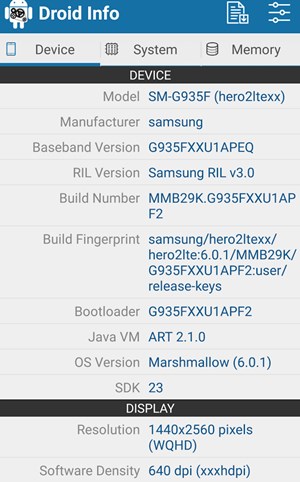
#3 Essentially the ARM: ARMv7 or armeabi, ARM64: AArch64 or arm64 and the x86: x86 or x86abi is the decoded information for your processor architecture that you might be looking for. Some of the other information is too listed with the app which you could easily use to narrate the full hardware information of your device processor!



Post A Comment:
0 comments: